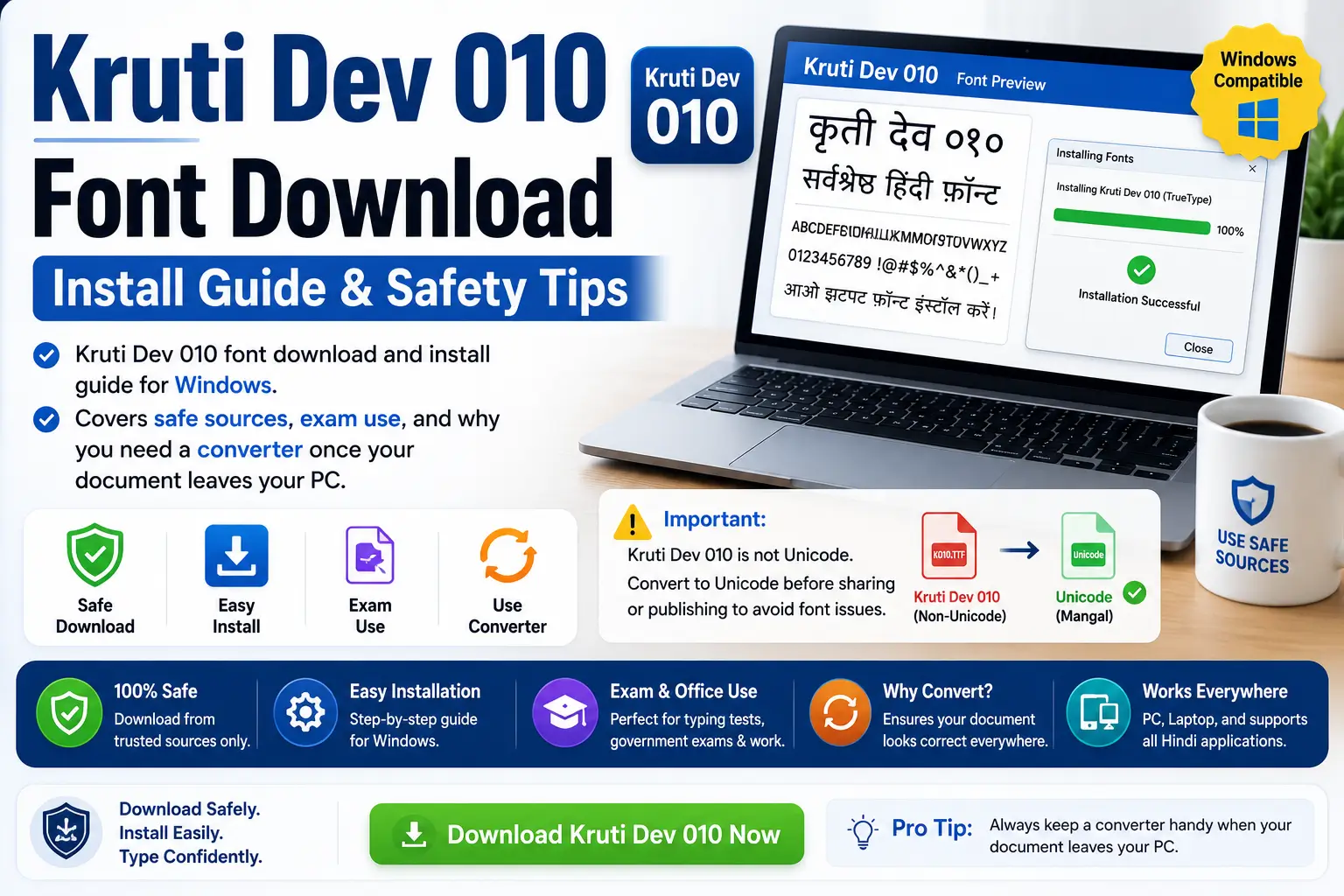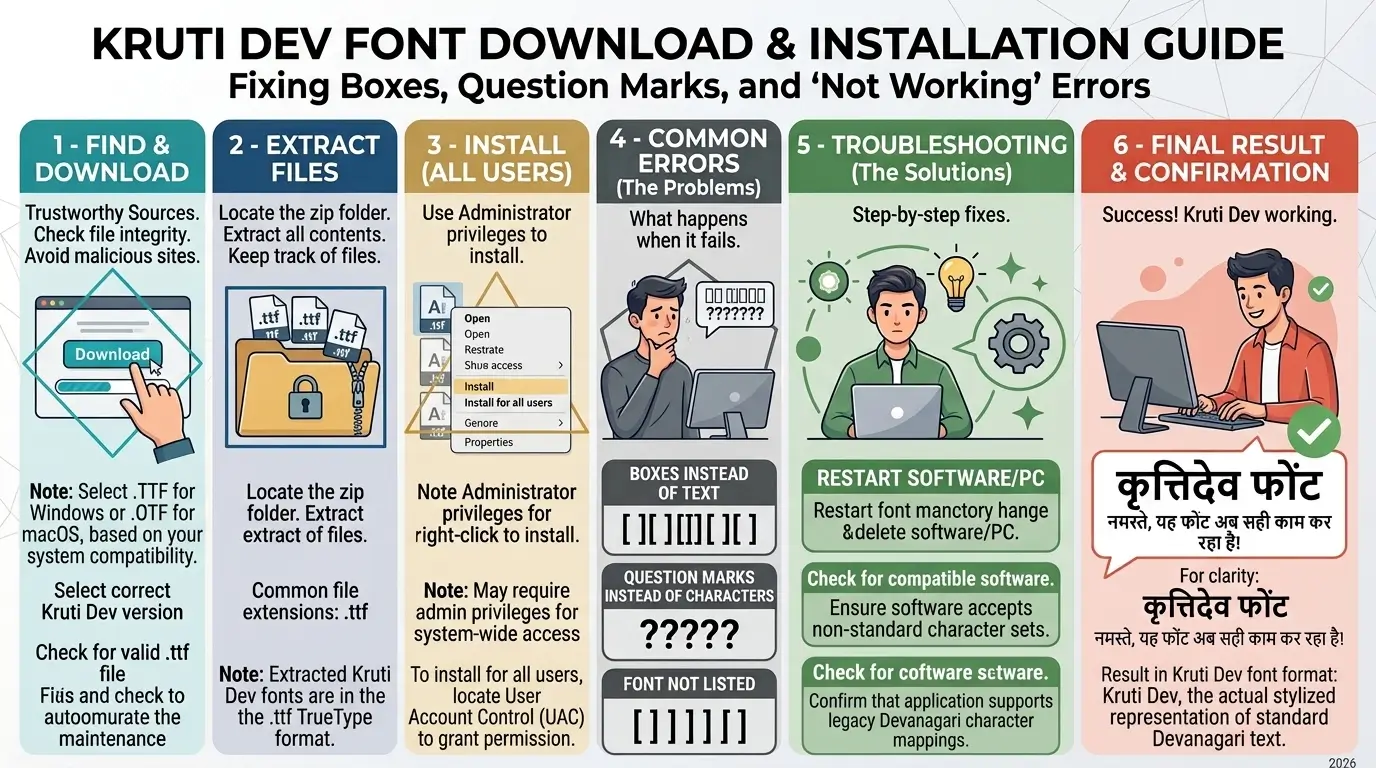
You converted your Hindi text using a Unicode to Kruti Dev converter, pasted it into Word, and instead of Devanagari, you’re staring at a string of English letters, small boxes, or question marks. This isn’t a conversion failure — the text is correct. What’s missing is the Kruti Dev font itself, installed and applied correctly on the machine you’re using right now.
This guide covers the full install process on Windows 10, Windows 11, and Mac, the most common reasons the font “installs” but still doesn’t display, and the specific font variant government exams and offices actually require.
Why Converted Text Still Looks Wrong
Kruti Dev is not a Unicode font. It stores Devanagari characters at ASCII keyboard positions, so a converter can only get you halfway there — the text is now encoded correctly. However, your operating system and word processor still need the actual Kruti Dev font file to render those ASCII positions as Hindi glyphs. There are three separate failure points, and it helps to know which one you’re hitting:
- Font not installed at all — you’ll see plain English letters where Hindi should be.
- Font installed but not applied — Word or PageMaker is still set to Mangal, Nirmala UI, or another default font on the pasted text.
- Wrong font variant installed — you installed DevLys, Chanakya, or a mismatched Kruti Dev weight, which uses a different character map than Kruti Dev 010.
How to Download and Install Kruti Dev 010 on Windows 11
- Download the font file. Get
KRDEV010.TTFfrom a reputable font repository. Avoid random ZIP files from typing-test forums with no listed source — corrupted font files are a common cause of the “still showing boxes” problem even after installation. - Install system-wide. Right-click the downloaded
.ttffile and select Install, or choose Install for all users if you have admin rights. The second option matters — exam practice software and some DTP tools only detect fonts installed system-wide, not per-user. - Alternative: Settings app method. Open Settings → Personalization → Fonts, then drag the
.ttffile into the window. This works without triggering a SmartScreen warning, but installs per-user only. - Verify the install. Press Win + R, type
charmap, and select Kruti Dev 010 from the font dropdown. If the grid fills with Devanagari characters, the font file is genuine and correctly loaded. If you see boxes or question marks in Character Map itself, the file is corrupted — re-download from a different source.
Installing Kruti Dev on Windows 10
The process is nearly identical: right-click the .ttf file and choose Install. Windows 10 does not have the same drag-and-drop Fonts panel as Windows 11, so the right-click method is your main route. After installing, fully close and reopen Word or your browser — fonts installed while an application is already running often don’t appear in its font list until restart.
Installing Kruti Dev on Mac
- Download the
.ttffile. - Double-click it — this opens macOS Font Book with a preview.
- Click Install Font in the preview window.
- Restart any open Word or design application so it picks up the new font.
macOS handles legacy ASCII-mapped fonts like Kruti Dev without issue for display purposes, but keyboard-layout typing (as opposed to pasting already-converted text) requires a separate Remington keyboard driver, which is a different setup from font installation alone.
Applied the Font But Text Still Won’t Display? Check These First
| Symptom | Likely Cause | Fix |
|---|---|---|
| Plain English letters | Font not installed, or installed per-user only while the app needs system-wide | Reinstall using “Install for all users”; restart the app |
| Small boxes or “tofu” squares | Corrupted font file | Delete and re-download from a different source, then reinstall |
| Font applied but text unchanged | Selection didn’t actually apply — common when pasting resets formatting | Select the pasted text again after pasting, then set the font, rather than setting the font before pasting |
| Correct in Word, broken on a website or in a PDF export | The Kruti Dev font isn’t embedded, so it only renders on machines that have it locally installed | Embed the font at export time, or convert the text back to Unicode before publishing online |
| Characters shifted or nonsensical, not just boxes | DevLys or Chanakya installed instead of Kruti Dev — different character map, same visual “legacy Hindi font” category | Uninstall the wrong variant, install Kruti Dev 010 specifically |
Which Kruti Dev Variant Do You Actually Need?
“Kruti Dev” is a family, not one font, and the number in the name is a style identifier rather than a version number. Installing the wrong one is one of the most common reasons a font “works” but still looks off in an exam or print layout:
- Kruti Dev 010 — the standard weight, and the one specified in most SSC and state government typing exam notifications.
- Kruti Dev 011 / 016 — alternate weights, same underlying character mapping, mainly used in print and design work.
- Kruti Dev 055 — bold display style for headlines and banners.
- DevLys and Chanakya — separate font products entirely, with their own character maps. Text converted for Kruti Dev will not display correctly in DevLys, and vice versa.
If you’re not sure which one your exam or office requires, check the official notification rather than guessing — several state exams specify a particular numbered variant, and installing the wrong one can cost you the practice time it takes to notice the mismatch.
Font Setup for Government Typing Exams
Kruti Dev 010 on the Remington layout remains an accepted Hindi typing option for several recruitment exams, typically alongside Mangal on the Inscript layout as an alternative. Exact speed requirements vary by exam and are set in the official notification for that recruitment cycle, but as a general reference point: SSC CHSL Hindi typing has been benchmarked around 30 words per minute (roughly 9,000 key depressions per hour), CPCT’s Hindi requirement has sat lower, and some state-level exams such as Rajasthan Patwari have used a lower threshold still. These figures move between notification cycles, so treat them as a planning reference and confirm the current number against your specific exam’s official notification before relying on it.
Note: figures above are a general planning reference, summarized from typing-exam prep resources rather than an official notification — confirm the current cycle’s exact speed, font, and layout requirement against your own recruitment body’s notification (for example, ssc.gov.in for SSC exams) before treating any number here as final.
Two setup mistakes show up repeatedly among exam candidates:
- Practicing on the wrong weight. Character widths differ slightly across the Kruti Dev family, so practicing on 040 when your exam uses 010 builds muscle memory that doesn’t transfer cleanly under time pressure.
- Practicing on the wrong keyboard layout. Kruti Dev exams generally use the Remington layout; Mangal uses Inscript. Confirm which one your notification specifies — a layout mismatch can cost you far more speed than an unfamiliar font weight would.
Frequently Asked Questions
Why does my Unicode to Kruti Dev converted text show English letters instead of Hindi?
The conversion itself is correct — what’s missing is the Kruti Dev font on the device displaying the text. Install Kruti Dev 010, then select it on the pasted text specifically, since pasting often resets the font back to whatever default your document was using.
I installed Kruti Dev but it still doesn’t show up in Word. What’s wrong?
Two common causes: the font was installed per-user rather than system-wide, or Word was already open during installation and needs a restart to detect it. Reinstall using an “install for all users” option where available, then fully close and reopen Word.
Is Kruti Dev 010 the same as the font my exam requires?
Most SSC and state clerical typing exams that accept Kruti Dev specify the 010 variant, but requirements vary by exam and can change between notification cycles. Confirm the exact font and keyboard layout against your own exam’s official notification before practicing.
What’s the difference between Kruti Dev and DevLys?
They’re separate font products with different character mappings, despite both being legacy Remington-style Hindi fonts. Text converted for Kruti Dev will not display correctly if you apply DevLys, and installing the wrong one by mistake is a common source of “the font is installed but still looks wrong” complaints.
Why does my Kruti Dev text look fine in Word but break when I publish it online?
Kruti Dev only displays correctly on devices that have the font installed locally. A website visitor without Kruti Dev installed will see the same boxes or gibberish you saw before installing it yourself. For anything published online, convert the text back to Unicode instead of publishing it in Kruti Dev encoding.

Team Unicode to Krutidev builds and maintains the Hindi typography tools on this site, including this converter. He works with Devanagari font encodings, Remington keyboard layouts, and legacy to Unicode migration for typists and DTP professionals across India.